How to Create the Perfect LinkedIn Profile Photo with AI (Step by Step)
A complete walkthrough for creating a professional LinkedIn profile photo with AI — the right prompt, the right tool, the right dimensions, and the honest do/dont rules for AI headshots in 2025.
Why your LinkedIn photo matters more than your headline
LinkedIn's own research says profiles with photos get up to 21 times more views and 9 times more connection requests. Recruiters spend those first seconds deciding whether to read further — and a blurry selfie or a cropped wedding photo quietly costs you interviews every single week.
A professional studio session costs Rs 2,000-8,000 and an afternoon. AI headshots cost a fraction of that and take minutes once you know the process. Here is the complete method, step by step.
Step 1: Understand what LinkedIn actually wants
Before generating anything, know the rules of a good professional headshot:
- Square or 4:5 crop — the photo displays as a circle, so the face must be centered with headroom
- Face takes roughly 60% of the frame — no wide shots, no full-body crops
- Neutral or softly smiling expression — approachable but competent
- Simple background — light grey, soft blue or a blurred office
- Clothing you would actually wear to work — plain, structured, no loud patterns
Step 2: Start with a proven headshot prompt
Do not write a headshot prompt from scratch — start with one that already works. Our professional studio headshot prompt gives you the full text to copy:
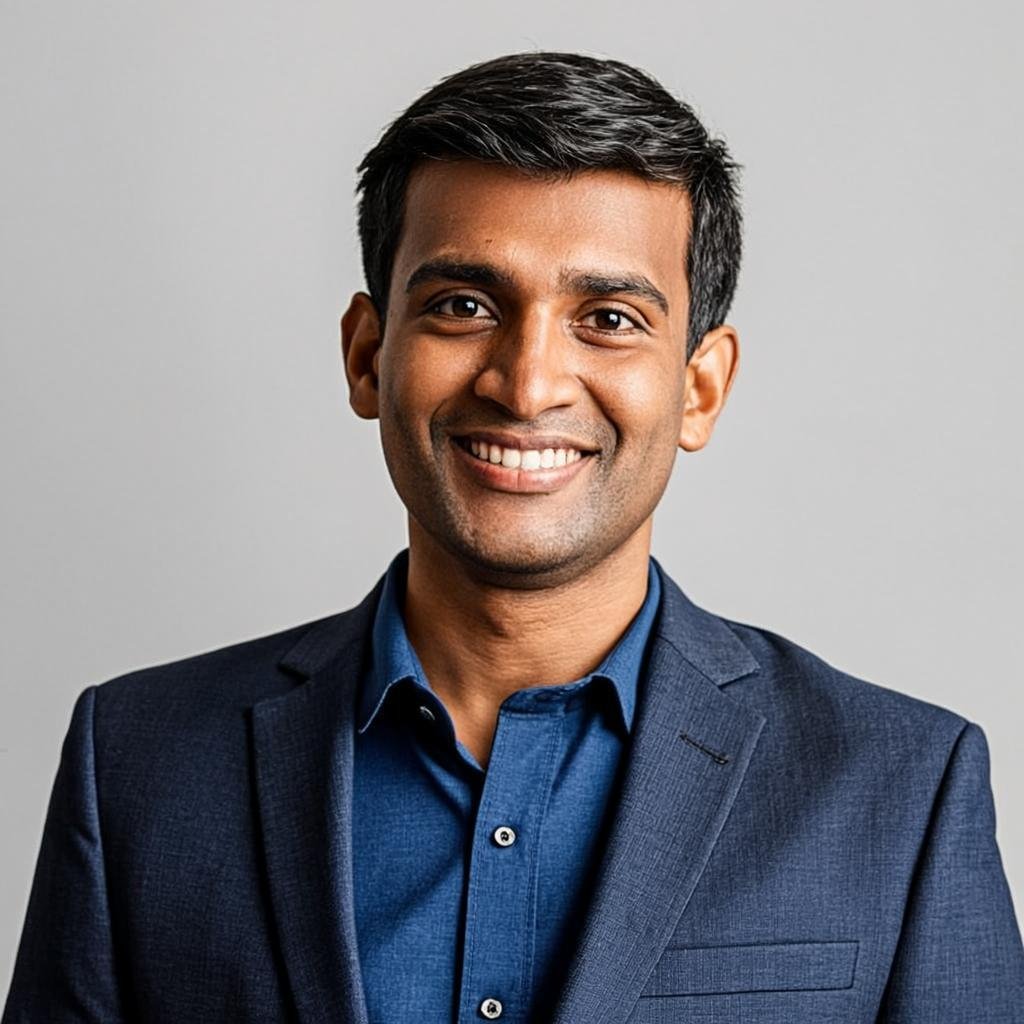
Professional corporate headshot of a confident young Indian businessman in a well-tailored navy suit, neutral light grey studio background, softbox lighting, friendly genuine smile, sharp focus, LinkedIn profile photo style, business portrait photography, high detail --ar 1:1
Every phrase in that prompt exists for a reason: softbox lighting keeps shadows gentle, the neutral background survives every crop, and 'friendly genuine smile' is the difference between approachable and corporate-robot.
Step 3: Customise it to look like you
Edit the subject description to match yourself honestly:
- Swap 'businessman' for 'businesswoman'
- Add specifics: 'round spectacles', 'short beard', 'hair in a neat bun'
- Adjust age range: 'young' → 'in his forties' or 'senior executive'
- Change the outfit: navy suit → charcoal blazer → crisp white shirt (for startup cultures)
Step 4: Generate with a face-accurate method
This is where most tutorials go quiet. A generic prompt generates a generic person — useful as a placeholder, not as *your* photo. For a headshot that actually looks like you, you need one of two approaches:
- 1Character reference (easiest): Midjourney's --cref parameter (or equivalent in your tool) with one clear, front-facing photo of you
- 2Trained model (best quality): Train a small LoRA on 8-15 photos of yourself using a service or locally with Flux — this gives the strongest likeness
Whichever you choose, upload photos with neutral expressions, even lighting and no sunglasses or hats.
Step 5: Pick and refine
Generate at least eight candidates. Judge them in this order:
- 1Does the face actually look like you (if using a reference)?
- 2Are the eyes sharp and looking at camera?
- 3Is the smile natural — would you trust this person?
- 4Are clothes and background clean and un distracting?
Then do one final refinement pass: crop to a perfect square with the eyes in the upper third, and export at 800x800 pixels or larger.
The honest rules for AI headshots in 2025
AI headshots are now common and widely accepted on LinkedIn, but follow these unwritten rules:
- Do use AI headshots for professional presence — thousands of professionals do
- Do choose results that honestly represent you — same age, same glasses, same hairline
- Do not generate a version of you that looks 15 years younger — recruiters notice the mismatch at interviews
- Do check your employer's or industry's specific policies (a few conservative sectors prefer real photos)
Bonus: matching headshots for your whole team
Running a startup or small firm? Generate a consistent set: keep the prompt identical and change only the subject description per person. Same background, same lighting, same crop — your 'Team' page instantly looks like you hired a photographer.
Start with the studio headshot prompt, or browse the professional headshots category for variations — casual startup style, senior executive style and more.
Frequently asked questions
Is it okay to use an AI photo on LinkedIn?
Yes. LinkedIn has no rule against AI-generated profile photos, and millions of professionals now use them. The only real rule is honesty: the photo should look like the current you, not a fantasy version of you.
Will people be able to tell it is AI?
A well-generated headshot is indistinguishable from a studio photo to almost everyone. The tells are usually over-smoothed skin or symmetrical-perfect features — both easy to avoid by picking the most natural result from your batch rather than the most flattering one.
Why does my face not look like me?
Because a text prompt alone cannot carry your identity. You need a reference image feature (--cref in Midjourney) or a trained LoRA. With a good reference, likeness jumps from 'a cousin' to 'clearly you'.
Can I use my phone photo as the reference?
Yes, if it follows reference-photo rules: front-facing, even light, neutral expression, no sunglasses, no filters. A clear selfie taken by a window works better than a posed party photo.
What resolution should the final image be?
LinkedIn displays profile photos small but stores them large. Export at 800x800 pixels minimum so your photo stays sharp on retina screens and in the mobile app.